# User Guide

Certificate Issuance Portal enables an Issuer/organization to select and create a sample certificate and issue it to an individual.

The first step for an issuer would be to *“Register as an Issuer”* on the Issuance portal.

## &#x20;Registration

<figure><img src="https://976594346-files.gitbook.io/~/files/v0/b/gitbook-x-prod.appspot.com/o/spaces%2F-Mi9TAMApVKuSwtZEklF%2Fuploads%2FJhk0m6ZTaNxjw0CZhTQl%2Fimage.png?alt=media&#x26;token=1beb3e38-26e1-4783-821c-7020128ec679" alt=""><figcaption></figcaption></figure>

* Enter Mobile no./Email Id
* &#x20;Redirects to registration page if not registered

<figure><img src="https://976594346-files.gitbook.io/~/files/v0/b/gitbook-x-prod.appspot.com/o/spaces%2F-Mi9TAMApVKuSwtZEklF%2Fuploads%2FJNNAKoS6LKmzxXRfbfDY%2Fimage.png?alt=media&#x26;token=41b6c2d5-335c-4dd1-91ff-48683f016ba7" alt=""><figcaption></figcaption></figure>

* Enter the required details in the registration form
* Click on "Register" button

Certificate Issuance consists mainly of two major steps.

1. Template Selection/ Template Generation
2. Certificate Issuance

## Template Selection & Generation <a href="#id-3b7792qa8rsb" id="id-3b7792qa8rsb"></a>

<figure><img src="https://976594346-files.gitbook.io/~/files/v0/b/gitbook-x-prod.appspot.com/o/spaces%2F-Mi9TAMApVKuSwtZEklF%2Fuploads%2FOt973vxiqxqYoM1ezxln%2Fimage.png?alt=media&#x26;token=13bdcb25-63a4-427f-b692-bb426bdd4533" alt=""><figcaption></figcaption></figure>

* Login as an issuer

<figure><img src="https://976594346-files.gitbook.io/~/files/v0/b/gitbook-x-prod.appspot.com/o/spaces%2F-Mi9TAMApVKuSwtZEklF%2Fuploads%2FqLVQoslplte4xVrMKICO%2Fimage.png?alt=media&#x26;token=f9072ae6-5495-44a7-8d81-db480f950261" alt=""><figcaption></figcaption></figure>

* Enter the OTP received on Mobile no./Email Id
* Click on Verify button
* Dashboard gets open

<figure><img src="https://976594346-files.gitbook.io/~/files/v0/b/gitbook-x-prod.appspot.com/o/spaces%2F-Mi9TAMApVKuSwtZEklF%2Fuploads%2FnNbya9AaYi2Wzh0KBYSv%2Fimage.png?alt=media&#x26;token=1e47d13f-8542-431b-b956-e25dedea04f9" alt=""><figcaption></figcaption></figure>

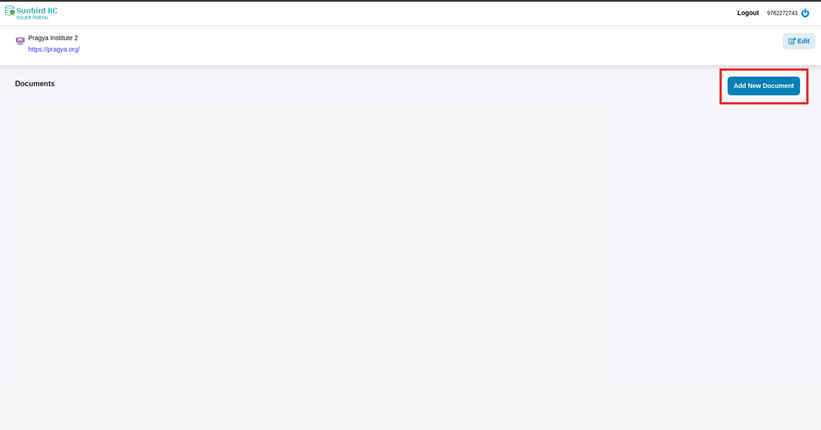
* Click on *“Add New Document”* button
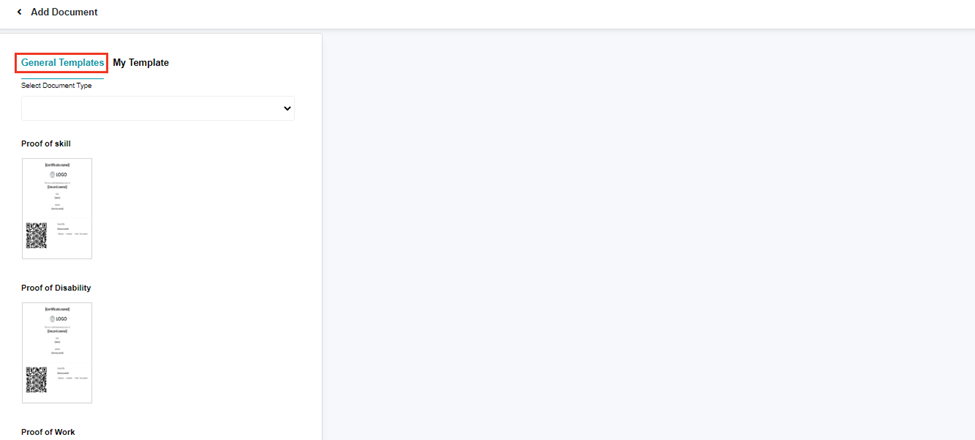
* Redirects to the screen where  two options are available
  * General Template: Pre-designed certificate templates are available. As of now 3 templates are available
    1. Proof of Skill
    2. Proof of Work
    3. Proof of Disability.
  * My Template: Allows users to upload and save custom form templates

### General Template <a href="#kfvv0odc9dxl" id="kfvv0odc9dxl"></a>

<figure><img src="https://976594346-files.gitbook.io/~/files/v0/b/gitbook-x-prod.appspot.com/o/spaces%2F-Mi9TAMApVKuSwtZEklF%2Fuploads%2FnUy2jADbcjbsESdeee5f%2Fimage.png?alt=media&#x26;token=cb3b04e8-573f-4ab6-983a-2258489beb4f" alt=""><figcaption></figcaption></figure>

* &#x20;Click on General Template button
* Templates appear on the screen
* Select a particular template, preview of the same is shown on the right hand side.

<figure><img src="https://976594346-files.gitbook.io/~/files/v0/b/gitbook-x-prod.appspot.com/o/spaces%2F-Mi9TAMApVKuSwtZEklF%2Fuploads%2FkVY22H0eYiy3rYcvQ7TP%2Fimage.png?alt=media&#x26;token=06e27665-09f3-4f60-a3a3-8ba42d75efad" alt=""><figcaption></figcaption></figure>

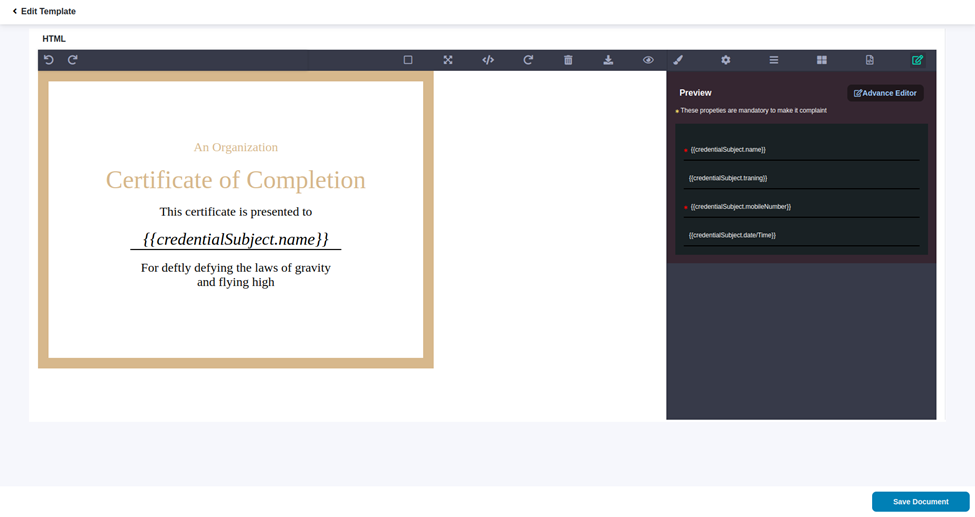
* &#x20;Click on *“Edit template”* button if customization required

<figure><img src="https://976594346-files.gitbook.io/~/files/v0/b/gitbook-x-prod.appspot.com/o/spaces%2F-Mi9TAMApVKuSwtZEklF%2Fuploads%2FvZDyJDKCSbGX6AYu02Nz%2Fimage.png?alt=media&#x26;token=2ff1e186-750d-4369-bbf3-f15dbce24003" alt=""><figcaption></figcaption></figure>

* Multiple options to edit the template are available to customize a certificate that meets specific needs and preferences of the user:
  * Layout editing
  * Adding or removing additional text
  * Adding Images
  * Changing fonts and colors
  * Export the html code of the generated certificate.
  * Advance Editor

<figure><img src="https://976594346-files.gitbook.io/~/files/v0/b/gitbook-x-prod.appspot.com/o/spaces%2F-Mi9TAMApVKuSwtZEklF%2Fuploads%2FiOU6h9zvmLBeHBLnGAXz%2Fimage.png?alt=media&#x26;token=1a0c160d-ea83-4aef-aaf1-334602da833f" alt=""><figcaption></figcaption></figure>

<figure><img src="https://976594346-files.gitbook.io/~/files/v0/b/gitbook-x-prod.appspot.com/o/spaces%2F-Mi9TAMApVKuSwtZEklF%2Fuploads%2FYRLODmVfYv1qjf3TQPS5%2Fimage.png?alt=media&#x26;token=ee0832d5-4e75-4733-87fd-23895452b4d5" alt=""><figcaption></figcaption></figure>

* Click on “*Advance editor”* button

<figure><img src="https://976594346-files.gitbook.io/~/files/v0/b/gitbook-x-prod.appspot.com/o/spaces%2F-Mi9TAMApVKuSwtZEklF%2Fuploads%2FaYmMtL3XLDWJ4egFewqn%2Fimage.png?alt=media&#x26;token=cdfd62e7-c35e-42cf-a27b-957b9a60dbf4" alt=""><figcaption></figcaption></figure>

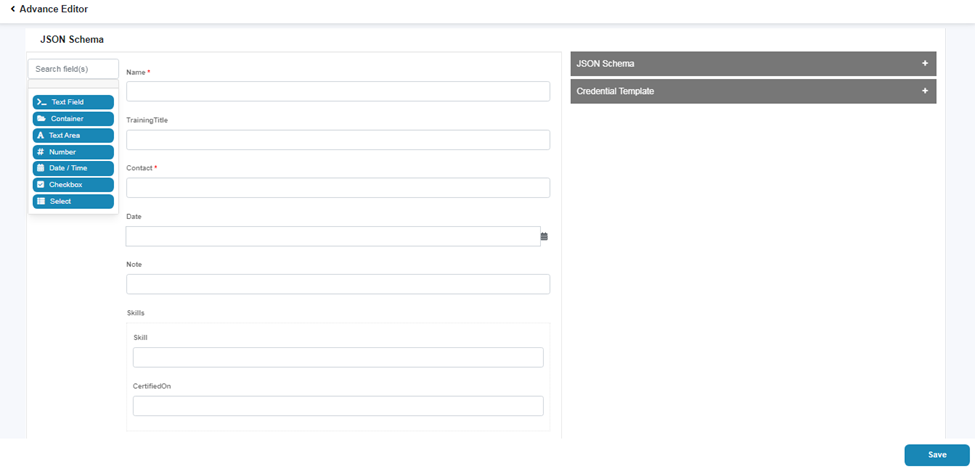
* The Advance Editor allows to customize the layout of your form by adding, removing, and rearranging form elements.
* &#x20;Drag and drop elements from the left-hand menu onto the canvas.
* Click on *“Save*” button to save the changes in the Advance Editor
* Click on *“Save Template*” button to save the template

<figure><img src="https://976594346-files.gitbook.io/~/files/v0/b/gitbook-x-prod.appspot.com/o/spaces%2F-Mi9TAMApVKuSwtZEklF%2Fuploads%2FrSNvuMudXqAR1qP9wZGK%2Fimage.png?alt=media&#x26;token=93efd4b5-2804-449f-8ce7-9b1d355d62e0" alt=""><figcaption></figcaption></figure>

* &#x20;Add Name of the Certificate and description(Certificate name should be unique)
* Click on “*save”* button
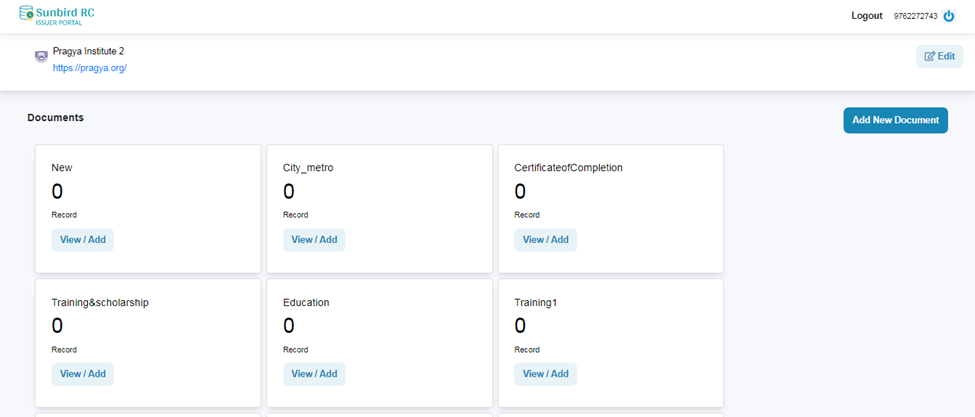
* Redirects to the Dashboard screen

<figure><img src="https://976594346-files.gitbook.io/~/files/v0/b/gitbook-x-prod.appspot.com/o/spaces%2F-Mi9TAMApVKuSwtZEklF%2Fuploads%2FVfuUy7iXFJEhamLudOp8%2Fimage.png?alt=media&#x26;token=e09e9b57-ff38-4d8a-9ac2-b9e68b3f7c5e" alt=""><figcaption></figcaption></figure>

* Saved template appears on the Dashboard

### My Template

<figure><img src="https://976594346-files.gitbook.io/~/files/v0/b/gitbook-x-prod.appspot.com/o/spaces%2F-Mi9TAMApVKuSwtZEklF%2Fuploads%2F8jAHmUxHT20DmB4ACuBg%2Fimage.png?alt=media&#x26;token=79276406-df90-4130-9dcd-03b366d0b41e" alt=""><figcaption></figcaption></figure>

* Click on *“My template”* button
* Click on *“Upload template”* button (Only SVG and HTML format supported)
* This will open a file dialog box, select the template file to upload.
* Preview of the template appears on the screen

<figure><img src="https://976594346-files.gitbook.io/~/files/v0/b/gitbook-x-prod.appspot.com/o/spaces%2F-Mi9TAMApVKuSwtZEklF%2Fuploads%2FGESK1mEzyiqlXP7asGnk%2Fimage.png?alt=media&#x26;token=3e98150e-cc5b-476a-aebe-bcd989228a95" alt=""><figcaption></figcaption></figure>

* Click on the *“Edit Template”* button

<figure><img src="https://976594346-files.gitbook.io/~/files/v0/b/gitbook-x-prod.appspot.com/o/spaces%2F-Mi9TAMApVKuSwtZEklF%2Fuploads%2FmM0LpYXUFuSOMLr7JUf7%2Fimage.png?alt=media&#x26;token=d743a825-a456-41ab-ba45-edef47bed017" alt=""><figcaption></figcaption></figure>

* &#x20;Multiple options to edit the template are available to customize the uploaded certificate:
  * &#x20;Layout editing
  * Adding or removing additional text
  * Adding Images
  * Changing fonts and colors
  * Export the html code of the generated certificate.
  * Advance Editor (Mandatory)

<figure><img src="https://976594346-files.gitbook.io/~/files/v0/b/gitbook-x-prod.appspot.com/o/spaces%2F-Mi9TAMApVKuSwtZEklF%2Fuploads%2FwJCGGDSijQ5Kv7VzBeQI%2Fimage.png?alt=media&#x26;token=d12a4216-1df5-489e-8a22-4cca7e1677c2" alt=""><figcaption></figcaption></figure>

* The Advance Editor allows to customize the layout of your form by adding, removing, and rearranging form elements.

<figure><img src="https://976594346-files.gitbook.io/~/files/v0/b/gitbook-x-prod.appspot.com/o/spaces%2F-Mi9TAMApVKuSwtZEklF%2Fuploads%2FNXFNAQTCkWhFp5j4fkfi%2Fimage.png?alt=media&#x26;token=520927f9-da4a-45f0-990b-2a5fdd98c438" alt=""><figcaption></figcaption></figure>

* Drag and drop elements from the left-hand menu onto the canvas.

<figure><img src="https://976594346-files.gitbook.io/~/files/v0/b/gitbook-x-prod.appspot.com/o/spaces%2F-Mi9TAMApVKuSwtZEklF%2Fuploads%2FNkcVSXDbDQklTrX16Hx9%2Fimage.png?alt=media&#x26;token=9e0c02fd-0a0a-4b54-afa1-b5110bc9923d" alt=""><figcaption></figcaption></figure>

* Add validations if required
* Click on *“Save*” button to save the text field component

***

<figure><img src="https://976594346-files.gitbook.io/~/files/v0/b/gitbook-x-prod.appspot.com/o/spaces%2F-Mi9TAMApVKuSwtZEklF%2Fuploads%2Fg97J97Sqim4PsPN56Gy6%2Fimage.png?alt=media&#x26;token=cc053771-7ab7-48c0-b1e4-f772cd6bc375" alt=""><figcaption></figcaption></figure>

* Click on *“Save*” button to save the changes in the Advance Editor

<figure><img src="https://976594346-files.gitbook.io/~/files/v0/b/gitbook-x-prod.appspot.com/o/spaces%2F-Mi9TAMApVKuSwtZEklF%2Fuploads%2F3GcO2Tv7O89DdrehDsLB%2Fimage.png?alt=media&#x26;token=5a3758a1-ee79-4bb7-8e6c-0b2202410698" alt=""><figcaption></figcaption></figure>

* Click on *“Save Document*” button to save the template
* Add Name of the Certificate and description(Certificate name should be unique)

<figure><img src="https://976594346-files.gitbook.io/~/files/v0/b/gitbook-x-prod.appspot.com/o/spaces%2F-Mi9TAMApVKuSwtZEklF%2Fuploads%2FyFVYKwJzucQlESnXYZWp%2Fimage.png?alt=media&#x26;token=8eccbb95-20eb-4446-92fc-e6e750e19a90" alt=""><figcaption></figcaption></figure>

* Click on “*save”* button
* Redirects to the Dashboard screen

<figure><img src="https://976594346-files.gitbook.io/~/files/v0/b/gitbook-x-prod.appspot.com/o/spaces%2F-Mi9TAMApVKuSwtZEklF%2Fuploads%2FTtUQVsGdagnUpzB03RY4%2Fimage.png?alt=media&#x26;token=e6155b1c-e996-49a6-bf84-f3602ebd3b9e" alt=""><figcaption></figcaption></figure>

## Certificate Issuance

There are two provisions available to issue the certificates to the individuals:

* Single Issuance: Single Issuance option allows to generate and issue one certificate at a time
* Bulk Issuance (WIP) : The Bulk Issuance option allows users to generate and issue multiple certificates at once using a CSV file containing the recipient information. This option is ideal because the issuer needs to issue certificates to a large group of individuals.

### Single Issuance <a href="#kj3ogw4b31o7" id="kj3ogw4b31o7"></a>

Steps to issue a certificate using the Single Issuance option:

* Open the Dashboard
* Click on the “View/Add” button in the document card

![](https://976594346-files.gitbook.io/~/files/v0/b/gitbook-x-prod.appspot.com/o/spaces%2F-Mi9TAMApVKuSwtZEklF%2Fuploads%2FQSDvTrQbjN65NYthSUzI%2Fimage.png?alt=media\&token=b0a55561-d9ab-4531-a84c-c4e1ff7c1bec)

* Click on the “Add” button to add a new record

<figure><img src="https://976594346-files.gitbook.io/~/files/v0/b/gitbook-x-prod.appspot.com/o/spaces%2F-Mi9TAMApVKuSwtZEklF%2Fuploads%2FgQRI2wlNW3uPYLxFQNzd%2Fimage.png?alt=media&#x26;token=fc03ebb0-a923-426f-947b-43b1ce060e90" alt=""><figcaption></figcaption></figure>

* Click on “Single Record” option
* Fill in the required details
* Click on the “Save” button

<figure><img src="https://976594346-files.gitbook.io/~/files/v0/b/gitbook-x-prod.appspot.com/o/spaces%2F-Mi9TAMApVKuSwtZEklF%2Fuploads%2FjxKipoK1hOzNSMPMVuPt%2Fimage.png?alt=media&#x26;token=473eee50-1360-4401-8120-4c7774b62aed" alt=""><figcaption></figcaption></figure>

* Redirects to the “List View” of issued certificates
* Click on the “view icon” to view the certificate

### Bulk Issuance (WIP) <a href="#g9jd4mlg0epx" id="g9jd4mlg0epx"></a>

Steps to issue a certificate using the Single Issuance option:

* Open the Dashboard
* Click on the *“View/Add”* button in the document card
* Click on the *“Add”* button to add a new record
* Click on *“Bulk Record”* option
* Click on the *“Download Sample Template*”
* Add the required data in the downloaded sample template( excel/CSV)
* &#x20;Click on the *“Browse”* Button
* This will open a file dialog box, select the excel/CSV to upload
* Click on “*Upload*” button
* Data gets uploaded and redirects to the list view of the recipients.
* Click on “View” button to view or download the certificate

&#x20;

***